> ## Documentation Index
> Fetch the complete documentation index at: https://termmate.app/docs/llms.txt
> Use this file to discover all available pages before exploring further.
# Get Started
> Install the TermMate extension in Sublime Text or VS Code, start a chat session, and select Claude Code or Codex as your active agent.
Once you have set up the prerequisite agent CLIs and installed TermMate, you are ready to start chatting.
## 1. Start Chat
Once TermMate is installed, open a chat session from within your editor.
### Sublime Text
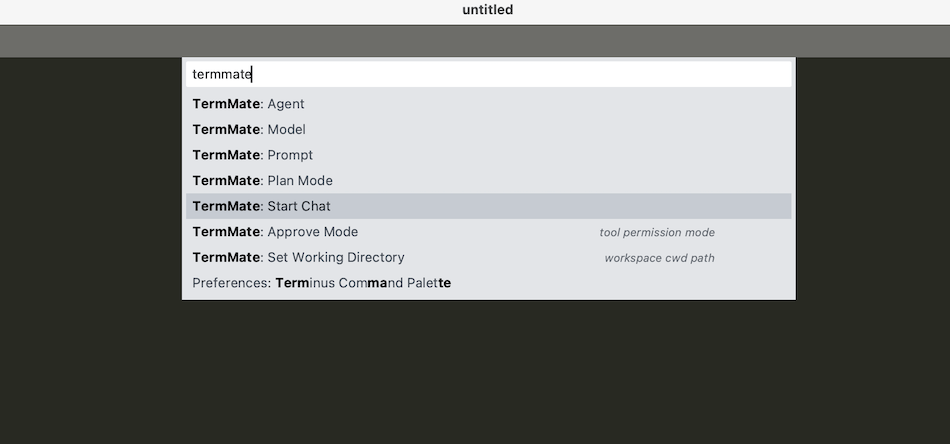 * Open the Command Palette (`Cmd+Shift+P` on macOS, `Ctrl+Shift+P` on Windows/Linux).
* Type `TermMate: Start Chat` and press `Enter`.
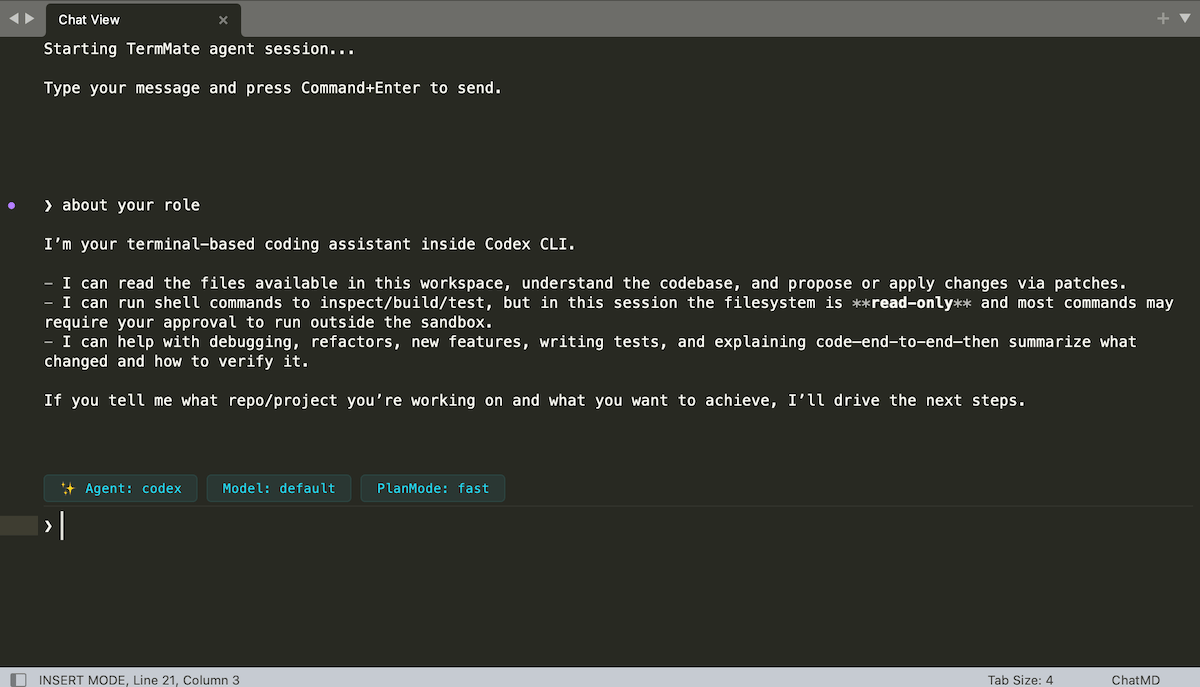
* A new view will open for the TermMate chat.
* Type your message and press `Cmd+Enter` (macOS) or `Ctrl+Enter` (Windows/Linux) to send.
* Open the Command Palette (`Cmd+Shift+P` on macOS, `Ctrl+Shift+P` on Windows/Linux).
* Type `TermMate: Start Chat` and press `Enter`.
* A new view will open for the TermMate chat.
* Type your message and press `Cmd+Enter` (macOS) or `Ctrl+Enter` (Windows/Linux) to send.
 ### VS Code
You can start a chat session in two ways:
* **Status Bar**: Click the **TermMate** item in the bottom status bar.
* **Command Palette**: Open the Command Palette (`Cmd+Shift+P` on macOS, `Ctrl+Shift+P` on Windows/Linux) and run `TermMate: Start Chat`.
## 2. Select Agent
When initiating a chat session, TermMate presents a native selector interface to choose your preferred underlying AI agent:
* **Sublime Text**: You can switch your active agent by clicking the **Agent button located directly above the chat input area** inside the chat view tab. This opens a selection list panel to choose your desired agent.
* **VS Code**: You can select or switch your active agent directly via the **dropdown menu located at the bottom of the chat input area** inside the Webview tab. Additionally, the bottom editor **Status Bar** displays the current active agent and model.
### Supported Agents
* **Claude Code**: Powered by Anthropic's terminal agent. Highly recommended for advanced reasoning, complex multi-file generation, and deep workspace context understanding.
* **Codex**: Powered by OpenAI's coding companion. Excellent for precise low-latency edits and interactive codebase exploration.
* **Pi Agent**: Powered by Gemini. A fast, lightweight option for everyday coding tasks.
TermMate automatically sets the working directory to your current project root. The agent can read, edit, and run commands within that scope.
### VS Code
You can start a chat session in two ways:
* **Status Bar**: Click the **TermMate** item in the bottom status bar.
* **Command Palette**: Open the Command Palette (`Cmd+Shift+P` on macOS, `Ctrl+Shift+P` on Windows/Linux) and run `TermMate: Start Chat`.
## 2. Select Agent
When initiating a chat session, TermMate presents a native selector interface to choose your preferred underlying AI agent:
* **Sublime Text**: You can switch your active agent by clicking the **Agent button located directly above the chat input area** inside the chat view tab. This opens a selection list panel to choose your desired agent.
* **VS Code**: You can select or switch your active agent directly via the **dropdown menu located at the bottom of the chat input area** inside the Webview tab. Additionally, the bottom editor **Status Bar** displays the current active agent and model.
### Supported Agents
* **Claude Code**: Powered by Anthropic's terminal agent. Highly recommended for advanced reasoning, complex multi-file generation, and deep workspace context understanding.
* **Codex**: Powered by OpenAI's coding companion. Excellent for precise low-latency edits and interactive codebase exploration.
* **Pi Agent**: Powered by Gemini. A fast, lightweight option for everyday coding tasks.
TermMate automatically sets the working directory to your current project root. The agent can read, edit, and run commands within that scope.