

@ Completion, and Quick Message.
1. Chat with File or Selection
TermMate provides a unified Chat with Agent command that handles both files and selections:- Sublime Text: Right-click in the editor or sidebar → TermMate: Chat with Agent.
- VS Code: Right-click in the editor or Explorer → TermMate: Chat with Agent, or run
Cmd+Shift+P→TermMate: Chat with Agent.
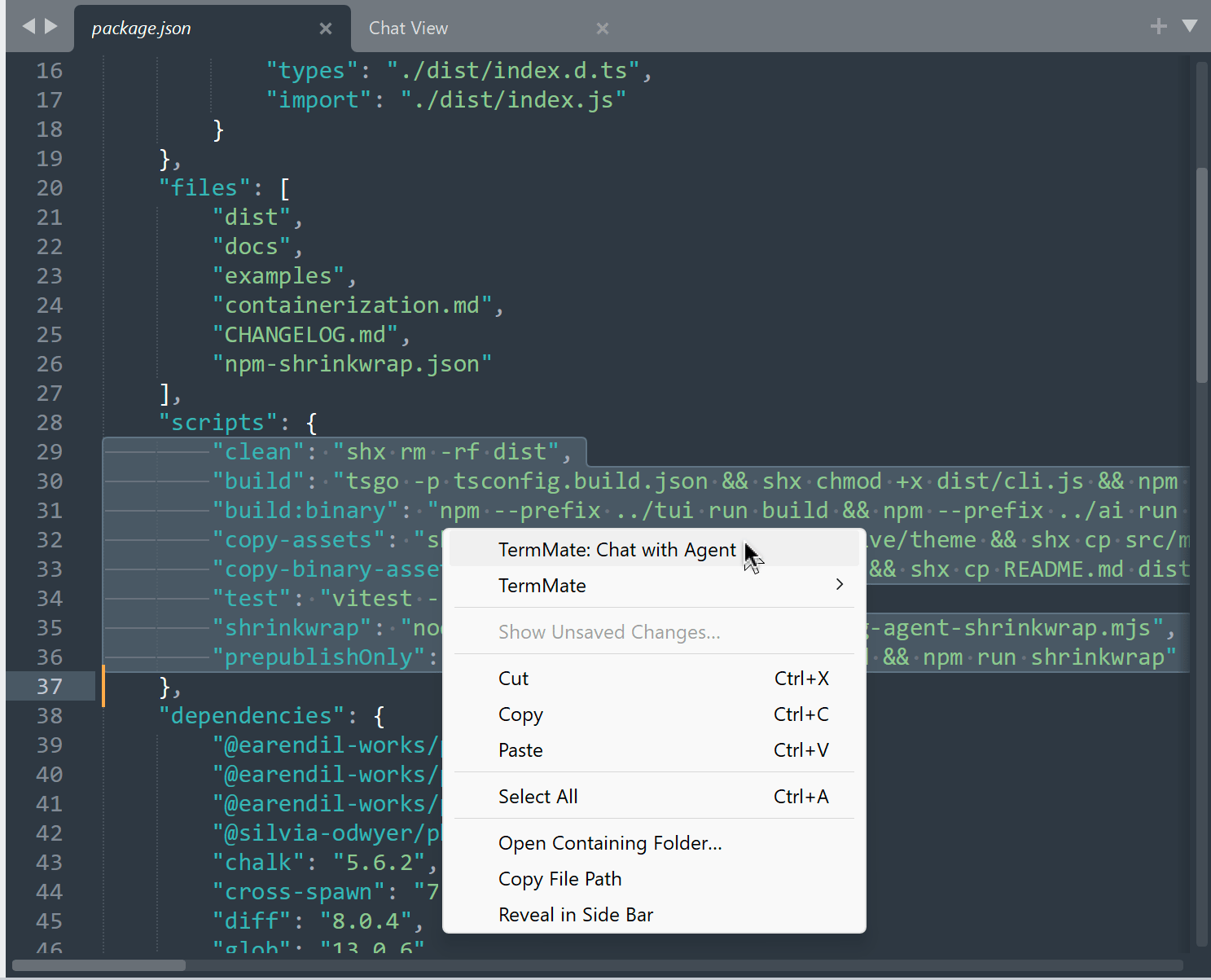
@path/to/folder/for a folder@filenamefor the current file@filename#L10-25for selected lines or cursor location
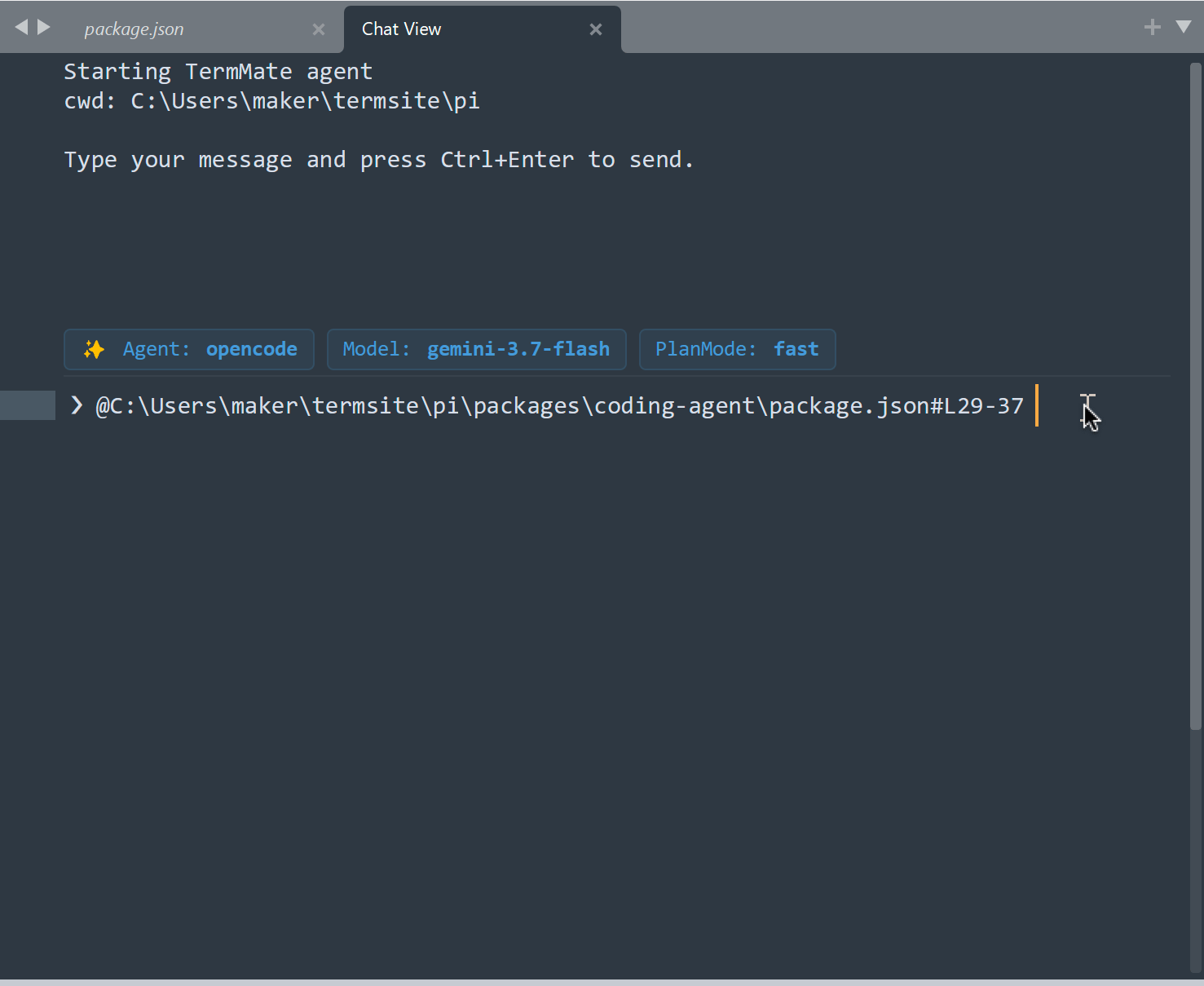
Cmd+Enter (macOS) / Ctrl+Enter (Windows/Linux) — tagged files are read and delivered as context to the active agent.
2. File Tags @ Smart Completion
You don’t need the right-click menu to reference project files. Typing @ anywhere in the chat prompt opens an interactive completion popup with multi-level directory drilling:
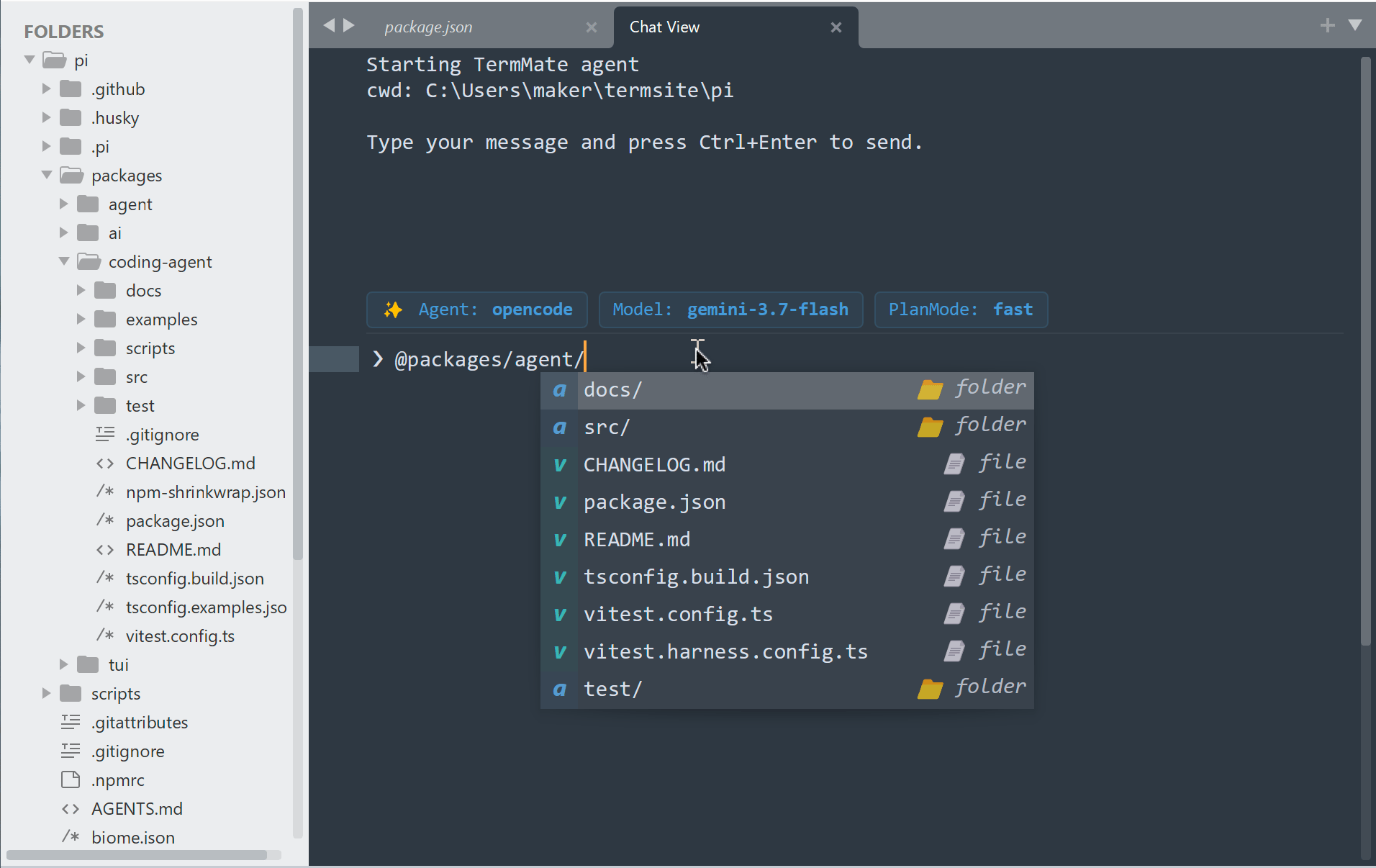
- 📁 Subdirectories & cascading navigation — selecting a folder (e.g.
src/) automatically cascades into its subdirectories and files without re-typing@. - 📄 Workspace files — files in the active workspace root.
- 📦 Multi-root workspaces — drill into secondary workspace folders in multi-folder projects.
- 📂 Open files — files currently open in editor tabs.
Tag Syntax Reference
3. Quick Message
RunTermMate: Quick Message from the Command Palette to compose and send a prompt directly from an input panel without switching tabs:
- If text is selected in your editor, TermMate automatically captures its file and line range as context.
- Sends directly to the active chat session (or starts a new chat if none exists).
- Configure
quick_message_focus_chatview(true/false) to control whether focus jumps to the Chat View or remains in your active editor.